

1. Go to the Apps menu from the FireStick home.
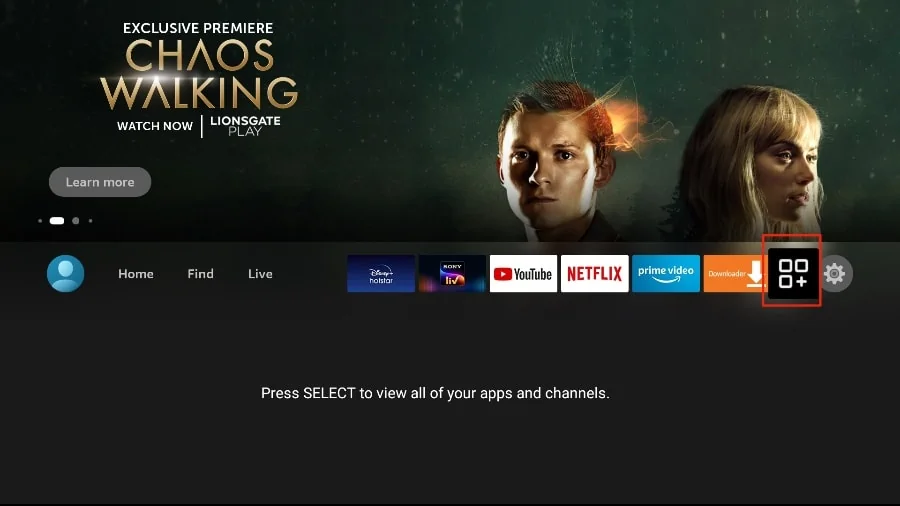
2. Open the Downloader app and select the Enter a URL box on the home screen.
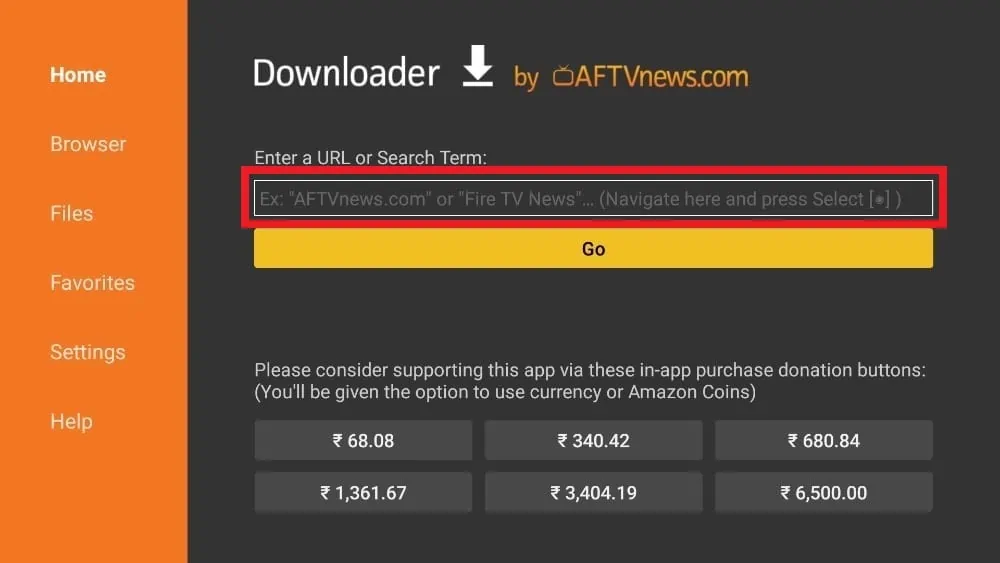
3. It will open a virtual keyboard. Type https://www.firesticktricks.com/tivi and hit Go at the bottom.
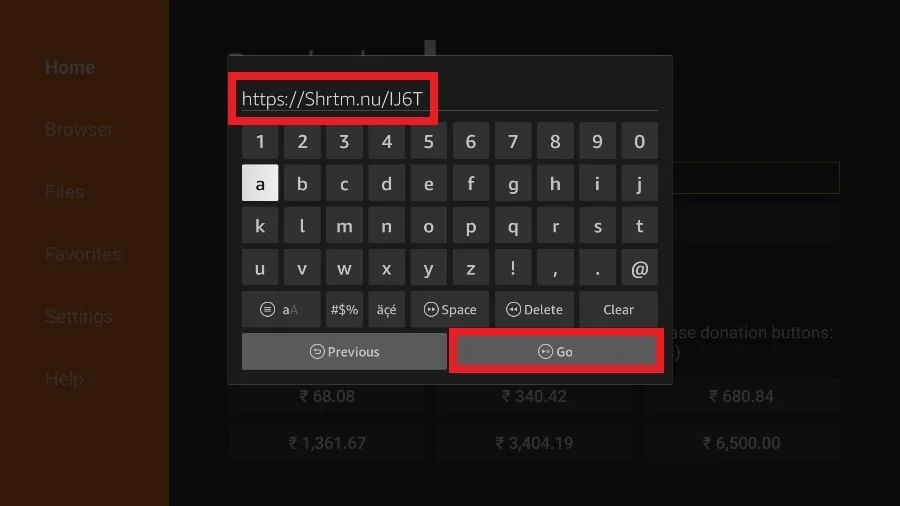
4. Downloader will install the latest TiviMate APK onto your FireStick. It’s about 11MB.
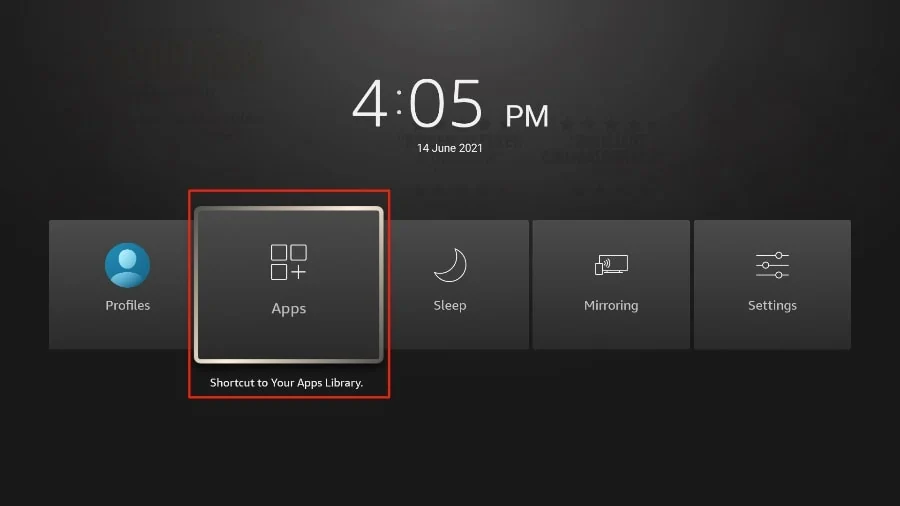
1. Press and hold the home button on your FireStick remote.
2. Select Apps on the following screen.
3. Scroll to TiviMate IPTV Player but do not select it. Instead of selecting it, press the options button on your FireStick remote.
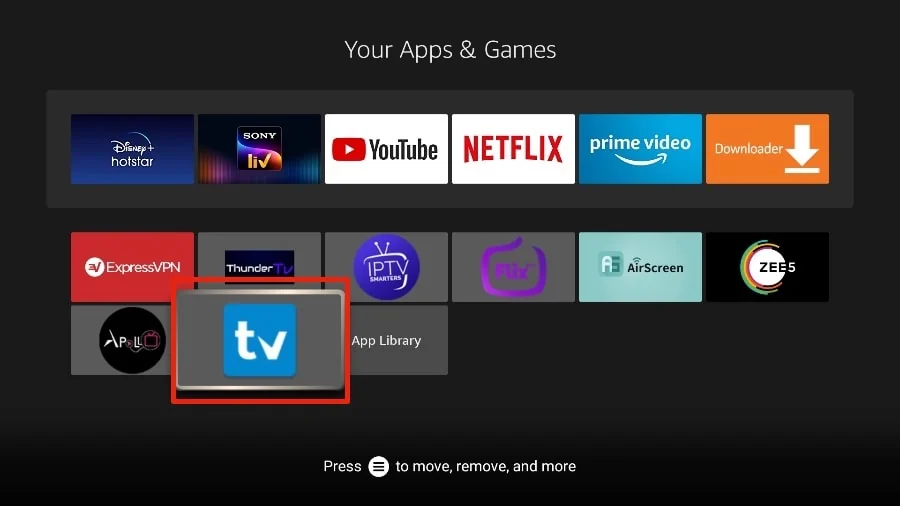
4. You will find the Move option on the right side. Select it.
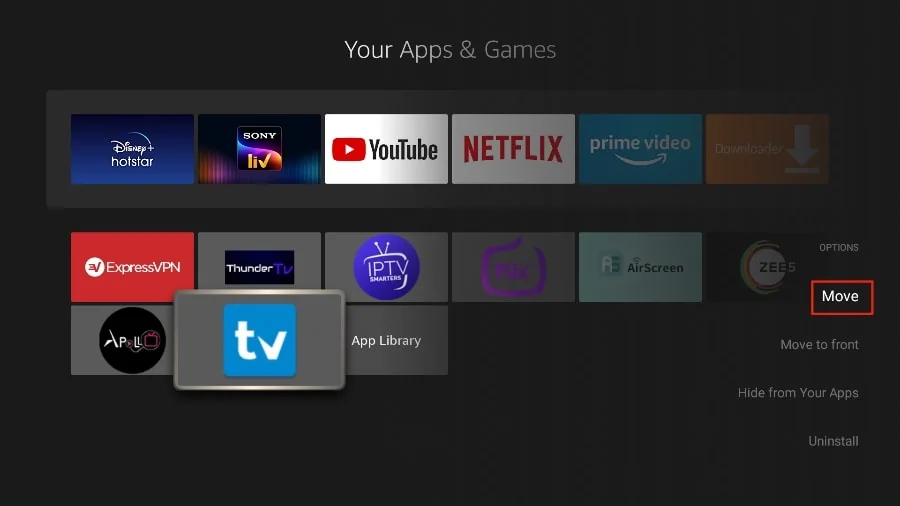
5. Move TiviMate to the top row, then press the select button on your remote to confirm the new location.
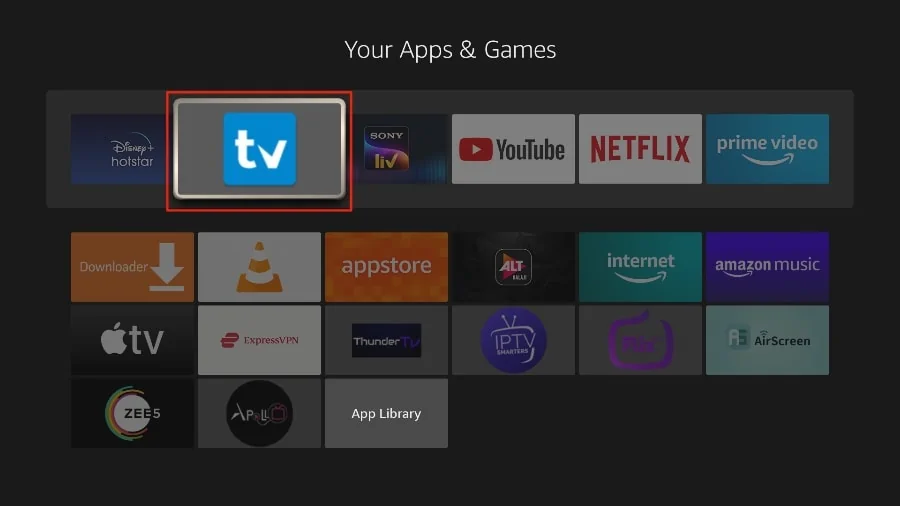
6. Now you can comfortably access TiviMate Player from your FireStick home screen. There’s no need to go through a menu each time.
1. Press and hold the home button on your FireStick remote.
2. Select Apps on the following screen.
3. Open the TiviMate app.
4. Select Add playlist.
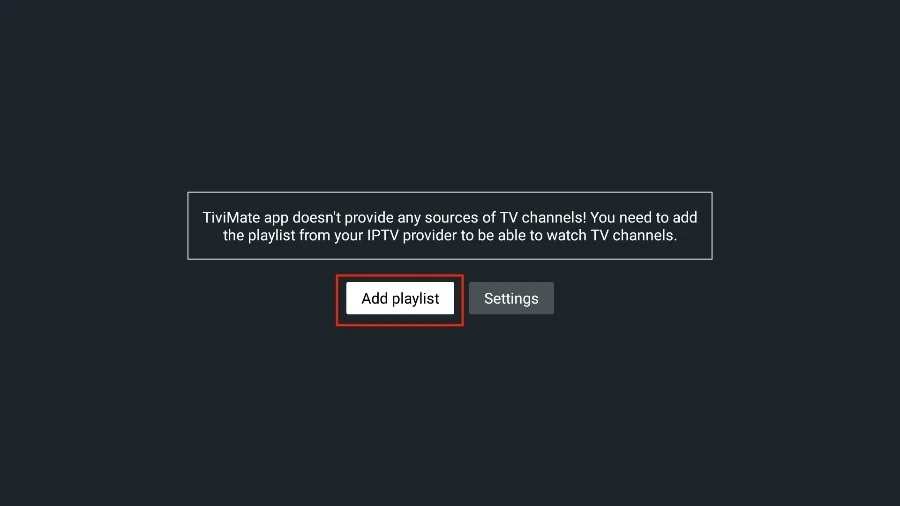
5. TiviMate will ask you to add a playlist using an M3U link, Xtream code, or Stalker Portal. Select the M3U playlist.
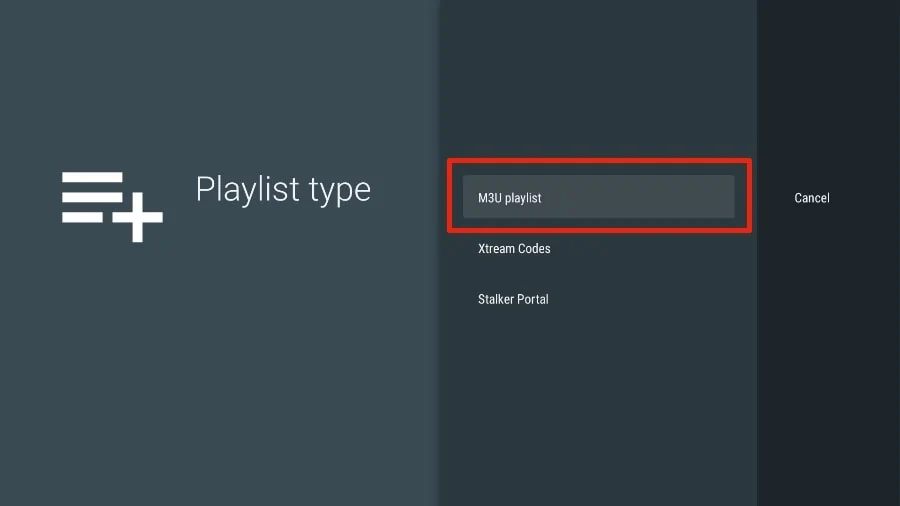
In this article, we will use an M3U link to play an IPTV service in the TiviMate app. When you subscribe to an IPTV service, you will receive an email with relevant login information and an M3U link. If you don’t get an M3U link, try contacting customer support and requesting an M3U link.
Most M3U links contain a username and password. They look something like this:
http://013tv.com:80/get.php?username=test-65927c&password=e657&type=m3u_plus&output=ts
Now that you have identified your M3U link, let’s proceed with integration.
6. TiviMate will ask for your M3U link. Enter your M3U link and press Next.

7. TiviMate will load the IPTV service and offer a peek at the number of channels and movies available in the IPTV package.
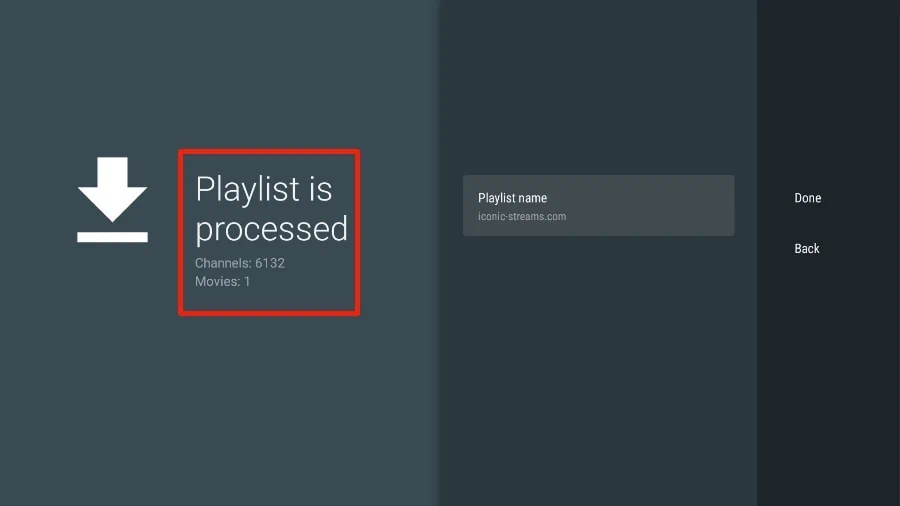
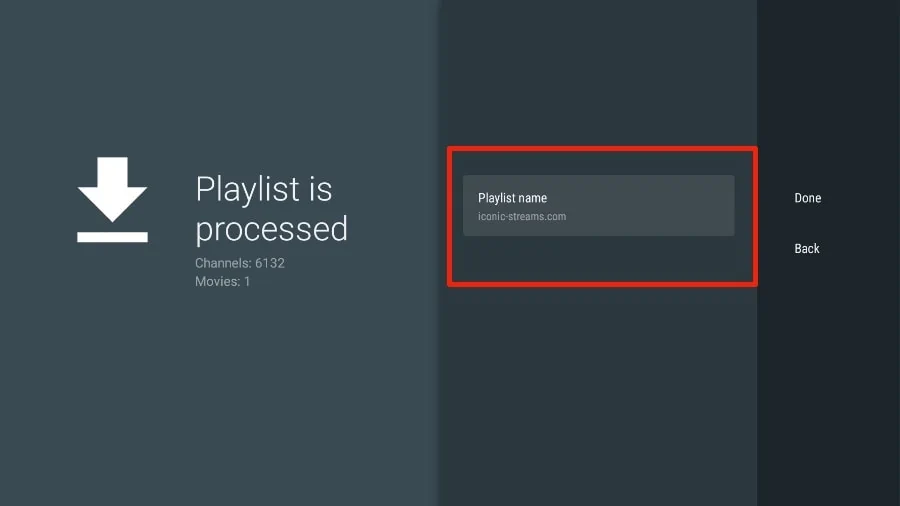
8. Add a Playlist name.
9. If the playlist is finished processing, select Done.
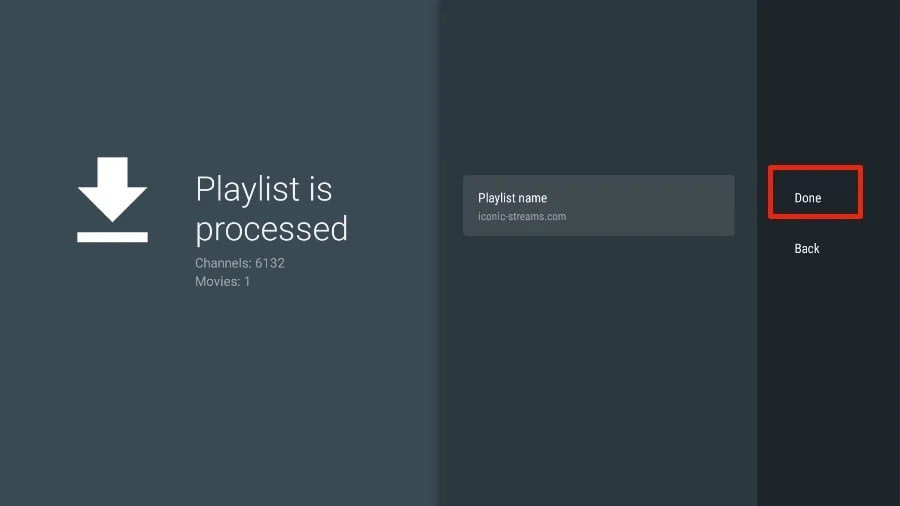
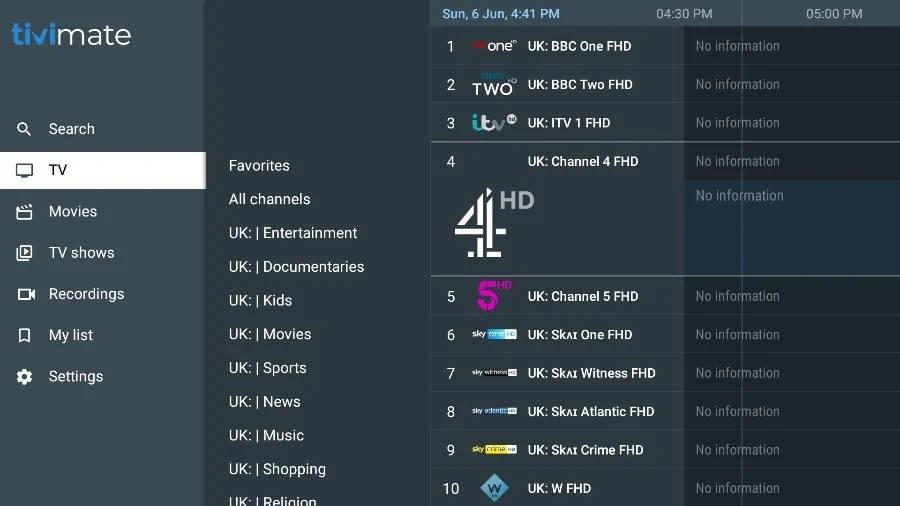
A minute or two later, you will see the IPTV service’s content appearing in the TiviMate app.
Most IPTV services have a dedicated EPG (electronic program guide), as shown below.
If you are facing any issues, please contact our support team on WhatsApp and they will help you set up the subscription in your APP.
Télécharger VLC  ( https://www.videolan.org/vlc/index.html)
Si vous rencontrez des problèmes avec le chargement de M3U, veuillez contacter notre équipe d’assistance sur WhatsApp et ils vous aideront à configurer l’abonnement dans votre VLC.
Recherchez dans l’App Store l’une des applications ci-dessous
 (select Xtream codes API )


Une fois que vous avez installé l’une de ces applications recommandées, vous pouvez utiliser les informations d’abonnement que nous vous avons reçues pour vous connecter.
Veuillez noter que certaines de ces applications sont payantes et doivent être achetées séparément sur leurs sites Web respectifs (cliquez sur l’icône de votre application préférée pour accéder à son site Web).
Si vous rencontrez des problèmes, veuillez contacter notre équipe d’assistance sur WhatsApp et elle vous aidera à configurer l’abonnement dans votre application.
Accédez au Google Play Store et recherchez l’une des applications recommandées ci-dessous
(sélectionnez API des codes Xtream )


 (Non recommandé)
 (Non recommandé)
 (Non recommandé)
Une fois que vous avez installé l’une de ces applications recommandées, vous pouvez utiliser les informations d’abonnement que nous vous avons reçues pour vous connecter.
Veuillez noter que certaines de ces applications sont payantes et doivent être achetées séparément sur leurs sites Web respectifs (cliquez sur l’icône de votre application préférée pour accéder à son site Web).
En cas de problème, veuillez contacter notre équipe d’assistance sur WhatsApp et elle vous aidera à configurer l’abonnement dans votre application.